
The Sudden Black Screen: A Story of Panic and Heat
Picture this exact scenario for a moment. You are sitting at your desk, intensely focused on finishing a massive project or maybe enjoying your favorite PC game. Suddenly, you hear it.
Your laptop fan begins to sound like a small jet engine preparing for takeoff. The keyboard under your fingertips feels uncomfortably hot, almost like touching a warm frying pan.
Before you even have time to press the save button, your screen instantly goes pitch black. The device shuts down completely, leaving you staring at your own worried reflection in the dark monitor.
If this has ever happened to you, you already know the massive anxiety that follows. Will it turn back on? Did you just lose hours of hard work?
More importantly, you might be asking yourself if your expensive device is permanently damaged. Dealing with an overheating laptop is not just a minor annoyance; it is a major source of daily stress for millions of computer users.
When a machine gets too hot, it totally ruins your mental peace. You find yourself constantly checking the temperature with your hand, afraid to open too many web browser tabs.
You cannot trust your own computer to simply do its job without throwing a thermal tantrum. This constant worry completely destroys your productivity and takes away the joy of using your tech.
The harsh reality is that extreme heat is a silent killer for internal electronics. But the good news is that you are not powerless in this situation.
I am going to share some deeply tested, highly practical ways to cool things down right now. You do not need a degree in computer engineering to save your machine.
Let us fix this burning problem together, step by step, using pure logic and simple science.
Why Your Device Feels Like a Mini Oven
Before we start applying fixes, we need to understand exactly what is happening inside that thin metal or plastic case. Your computer has a brain, known as the Central Processing Unit (CPU), and often a dedicated graphics chip too.
Whenever you ask these chips to think hard, they require electricity to process the data. It is a basic law of physics that electricity passing through circuits generates heat.
Think of your CPU like an athlete running a marathon. The faster they run, the more body heat they produce.
Normally, the laptop has a built-in cooling system—usually a small copper pipe and a spinning fan—to push this heat outside. But if this system fails or gets blocked, the heat gets trapped inside the tiny case.
When temperatures reach dangerous levels, the computer initiates a safety protocol called thermal throttling. This means the system deliberately slows itself down to prevent melting, which is exactly why your computer suddenly feels incredibly slow and laggy.
If slowing down does not lower the temperature, the system forces an emergency shutdown to prevent an actual fire. Understanding this basic science helps you realize that cooling a computer is mostly about letting it breathe properly.
Myth vs Reality: Common Cooling Mistakes
When people panic about high temperatures, they often try random fixes they read on social media. Many of these tricks are actually terrible for your device. Let us quickly clear up some dangerous misunderstandings.
By avoiding these common mistakes, you protect your device from even worse damage. Now, let us move on to the actual, proven techniques that work.
First Aid: Clearing the Airflow Bottlenecks
The absolute most common reason for an overheating laptop is surprisingly simple: dust. Think of dust as a thick winter blanket that slowly wraps itself around your computer's internal organs.
Over months of use, your laptop fan acts exactly like a mini vacuum cleaner. It constantly sucks in air from your room, along with microscopic dust, pet hair, and dead skin cells.
This dirt naturally clumps together inside the tiny copper fins of the cooling vent. Once those vents are completely blocked, the hot air has absolutely nowhere to escape.
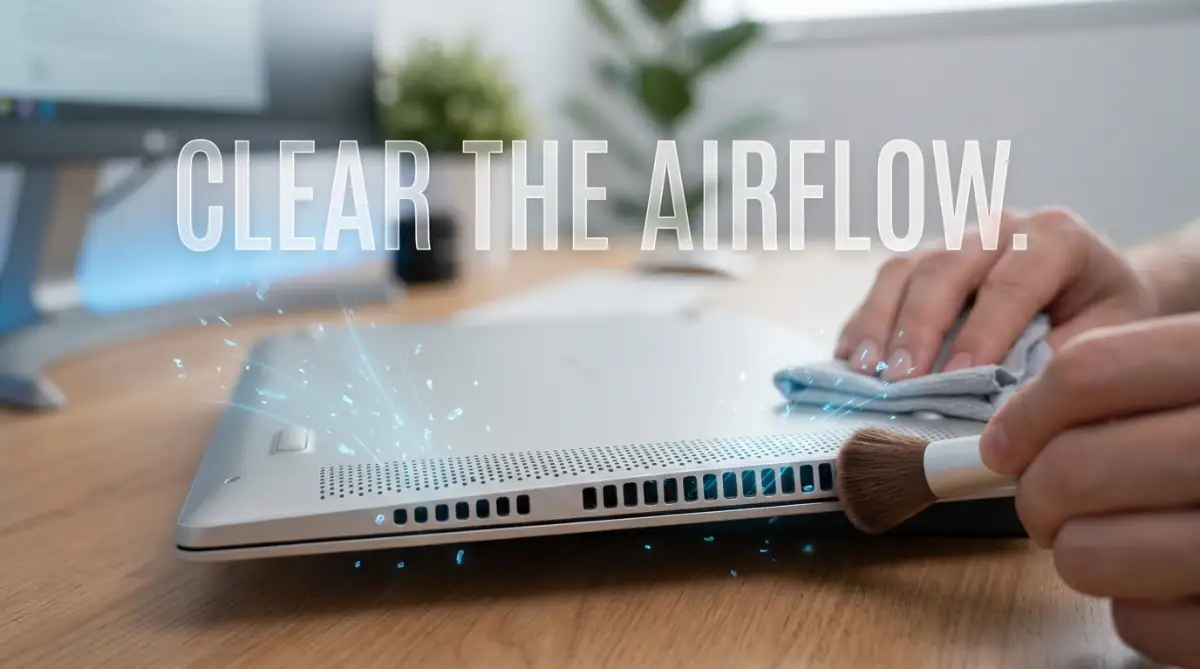
To fix this, you need to gently clean the exhaust vents. First, completely turn off your computer and unplug it from the wall charger.
Find the air vents, which are usually located on the back edge or the bottom panel of the machine. Use a very soft-bristled brush, like a clean makeup brush or a brand-new toothbrush, to sweep away the visible dust on the outside.
If you want to use compressed air, be extremely careful. Do not just blast air directly into the vent from a close distance.
Hold the can of compressed air straight up, stay a few inches away, and use very short, quick bursts of air. If you blow air too hard and too long, you can actually spin the internal fan so fast that it breaks its own bearings.
By simply removing this physical dust barrier, you can easily drop your internal temperatures by ten degrees or more. It is the most effective first step you can take today.
The Invisible Burden: Managing Software Overload
Sometimes the outside of your machine is perfectly clean, but it still runs incredibly hot. In these cases, the problem is usually invisible software running silently in the background.
Going back to our athlete analogy, imagine asking a person to run a marathon while carrying fifty heavy backpacks. Background apps are exactly like those backpacks.
Every single open browser tab, hidden chat application, and background update requires processing power. The harder the processor works to manage all these tasks, the more heat it generates.
You need to take immediate control of what your computer is actually doing. If you use a Windows machine, press Ctrl + Shift + Esc to open the Task Manager right now.
Look carefully at the "CPU" column to see which specific programs are using the highest percentages of your processor. You might be shocked to see a forgotten app eating up 40% of your processing power for no good reason.
If you find a program you are not actively using, click on it and select "End Task". By closing these greedy applications, you instantly reduce the electrical load on your processor.
Less electricity means less heat, and your cooling fan will finally quiet down. Making a habit of closing apps you do not need is a totally free and highly effective cooling strategy.
Where You Work Changes Everything: Surface Dynamics
Many people completely ignore the physical location where they place their computers. I completely understand the appeal of taking your device to bed and watching movies on a lazy Sunday.
However, placing your machine on a mattress, a soft couch, or a thick carpet is a terrible idea for temperature management. These soft materials are literal death traps for computer airflow.
Most modern laptops pull in fresh, cool air through small rubber feet and vents located directly on the bottom case. When you set the device on a soft blanket, the laptop sinks down into the fabric.
This completely smothers the intake vents, choking off the fresh air supply entirely. Even worse, materials like cotton and wool naturally absorb and retain heat, turning your bed into an active heater for your battery.
You must always use your machine on a hard, completely flat surface. A wooden desk, a glass table, or even a large hardcover book works perfectly.
This ensures that the rubber feet on the bottom can create a small gap of air between the desk and the machine. That tiny gap is absolutely necessary for fresh air to circulate properly.
If you absolutely must use your device in bed, invest in a simple, flat wooden lap desk. This tiny change in your daily habits will drastically extend the lifespan of your internal hardware.
The Danger of "High Performance" Mode
Another hidden culprit behind massive heat generation is your operating system's power settings. Both Windows and Mac computers come with different power profiles designed to balance battery life and processing speed.
Many users manually switch their devices to "High Performance" mode, thinking it will make their web browsing or daily tasks faster. This is a massive mistake if you are struggling with heat issues.
High Performance mode essentially tells your processor to run at its absolute maximum speed at all times, even when you are just reading a simple text document. It pushes maximum voltage through the circuits constantly.
To lower your temperatures, you need to change this setting back to a balanced profile immediately. Go into your system settings and look for the battery or power options.
Switch your active plan to "Balanced" or "Better Battery" mode. This allows the computer to intelligently lower the CPU speed when you are doing simple tasks like typing an email.
By letting the processor rest during quiet moments, the internal temperature has a chance to drop naturally. You will likely never notice a difference in speed for everyday tasks, but your cooling fan will thank you by staying silent.
Knowing Your Numbers: Proactive Temperature Monitoring
Finally, you cannot fix what you cannot measure. Guessing your computer's temperature by touching the keyboard is incredibly inaccurate.
The plastic case might feel slightly warm, while the processor inside is actually screaming at a dangerous 95 degrees Celsius. To take proper care of your machine, you need accurate, scientific data.
There are plenty of free, incredibly lightweight software tools designed exactly for this purpose. Programs like HW Monitor or Core Temp take a direct reading from the tiny thermal sensors built into your motherboard.
Once you install one of these simple tools, you can see your exact numbers in real-time. A healthy laptop usually idles somewhere between 40 and 55 degrees Celsius when you are just staring at the desktop.
When you are playing a heavy game or exporting a video, seeing temperatures climb to 75 or even 85 degrees is fairly normal. However, if your numbers constantly stay above 90 degrees, your hardware is in serious distress.
By keeping a small temperature monitor running in the corner of your screen, you can easily spot trouble before it turns into an emergency shutdown. It gives you the confidence to know exactly when you need to clean those vents or close some heavy applications.
Going Beyond the Basics: Pro-Level Thermal Management
When you have already cleaned the dust and closed heavy background apps, your computer might still run a bit warm. This is completely normal for aging devices, but you do not have to just accept it.
There are advanced, highly effective techniques that professional technicians use to keep old hardware running like brand-new machines. These methods require a little more patience, but the long-term results are absolutely amazing.
You can actually take manual control of how your hardware manages electricity and heat. Let us explore these expert-level secrets that can save your expensive equipment from an early death.
The Magic of Replacing Dried Thermal Paste
Inside your computer, the processor and the copper cooling pipe are two separate pieces of metal. Even though they look perfectly flat, on a microscopic level, their surfaces are incredibly rough and bumpy.
If you just press these two metal pieces together, tiny air gaps will get trapped between them. Because air is a terrible conductor of heat, your processor will overheat instantly.
To fix this gap, manufacturers use a special metallic or ceramic gel called thermal paste. This paste fills in all the microscopic holes, allowing the heat to travel smoothly from the hot processor to the cooling pipe.
However, this factory-applied paste does not last forever. After a few years of constant heating and cooling, the soft gel dries up and turns into a hard, cracked crust.
When this happens, the heat gets trapped right at the source, no matter how fast your fan spins. The solution is carefully opening your machine, wiping away the old crust with rubbing alcohol, and applying a fresh drop of high-quality paste.
If you are intimidated by this process, you can easily hire a local repair shop to do it for you. According to expert repair guides on applying new thermal interface materials, this single maintenance step can drop your internal temperatures by an incredible fifteen to twenty degrees.
Mastering the Art of Undervolting
Have you ever wondered if your computer is using more electricity than it actually needs? Most processors are shipped from the factory with a "one-size-fits-all" voltage setting.
Manufacturers pump extra electricity into the chips just to guarantee they run stably under any condition. But this extra, unnecessary electricity directly translates into trapped heat.
This is where a brilliant technique called undervolting comes into play. Undervolting simply means using a free software program to slightly lower the amount of power sent to your processor.
Think of it like tuning a car engine to be more fuel-efficient. You are not slowing the computer down at all; you are just teaching it to do the exact same amount of work using less electricity.
This technique is incredibly helpful for heavy power users. For instance, if you are doing intense tasks like building a private AI brain and safely training models, your hardware is pushed to its absolute limit for hours.
By undervolting the CPU beforehand, you can safely run these massive calculations without melting your motherboard. The computer runs quieter, the battery lasts longer, and the temperatures stay beautifully low.
Customizing Your Personal Fan Curves
Most laptops are programmed to prefer silence over low temperatures. The manufacturers intentionally keep the cooling fans turned off until the hardware is already burning hot.
They do this because consumers generally complain about loud fan noises. But from a hardware survival perspective, waiting until the computer is boiling to turn on the fan is a terrible strategy.
You can change this behavior by installing custom fan control software. These programs allow you to draw a simple line graph, telling the fans exactly when to spin up.
You can tell your machine to start spinning the fans gently at 40 degrees, rather than waiting for it to hit 70 degrees. By starting the cooling process earlier, the heat never has a chance to build up to dangerous levels.
You might hear a soft humming sound more often, but your internal components will stay completely safe. It is a very small trade-off that dramatically extends the life of your technology.

The Dangerous Traps That Destroy Electronics
Trying to fix an overheating problem can sometimes lead to absolute disasters if you use the wrong tools. When people panic about a hot device, they often rush into quick solutions without understanding basic electronics.
One single bad decision can instantly turn a perfectly good laptop into an expensive paperweight. Let us talk about the hidden traps you must avoid at all costs.
The Vacuum Cleaner Disaster
I have seen countless people try to clean their laptop vents using a standard household vacuum cleaner. It sounds like a logical idea; a vacuum sucks up dust from the carpet, so it should suck dust from a computer, right?
This is actually one of the fastest ways to completely destroy your motherboard. Vacuum cleaners generate a massive amount of static electricity around their plastic nozzles as they move massive amounts of air.
When you bring that highly charged plastic nozzle near your delicate computer parts, an invisible spark of static electricity can jump across the gap. If you read up on electrostatic discharge risks, you will learn that even a tiny static shock can instantly kill sensitive microchips.
Always stick to soft brushes or careful, short bursts of canned air. Never let a household vacuum cleaner get anywhere near your expensive electronics.
The Risk of Cheap Power Adapters
When an original laptop charger breaks, many users try to save money by buying cheap, unbranded replacements online. This innocent attempt to save a few dollars often leads to horrific temperature problems.
Cheap chargers are built with incredibly poor internal components that fail to regulate electricity properly. Instead of sending a smooth, steady stream of power, they send wild, unpredictable voltage spikes into your machine.
Your laptop's internal battery and motherboard have to work extremely hard to filter out this messy electricity. This intense filtering process generates a massive amount of excess heat right under your keyboard.
Even worse, this unstable power delivery can literally fry your battery over time. If you rely on your computer for important work, a sudden hardware death can be just as devastating as the hidden legal traps that can destroy your new startup overnight.
Always invest in original, manufacturer-approved power adapters. The extra money you spend on a real charger acts as an insurance policy for your entire computer system.
The "Freezer" Myth
Another terrifying mistake is the idea of putting a very hot device in the refrigerator or near an air conditioner vent for a quick cooldown. Sudden, extreme temperature changes are awful for any material, especially delicate electronics.
When a hot motherboard is suddenly exposed to freezing cold air, the metal components shrink very rapidly. This rapid shrinking can literally snap the tiny solder joints that connect the chips to the board.
Furthermore, cold environments cause moisture in the air to condense directly onto the warm electronic parts. You end up with actual droplets of water forming inside your computer, which leads to immediate short circuits.
Always let your machine cool down naturally in a normal room temperature environment. Patience is much cheaper than buying a completely new motherboard.
Your Personal Hardware Rescue Action Plan
You now have a deep, practical understanding of exactly how your computer manages heat. You know the exact science behind the problem and the most effective ways to solve it safely.
It is time to stop worrying about sudden black screens and start enjoying a fast, reliable, and perfectly cool device. Managing your hardware temperatures does not require an expensive degree; it just requires a few smart, daily habits.
To make this incredibly easy, I have put together a simple action plan for you. You can start applying these exact steps right now, today.
Step 1: Check Your Environment
Look at exactly where you are using your computer right now. If it is sitting on a blanket, pillow, or carpet, immediately move it to a hard, flat desk. This instant change will restore fresh airflow to your cooling vents within seconds.
Step 2: Clean the Airways
Grab a brand-new, clean toothbrush or a soft makeup brush. Completely turn off your machine, and gently sweep out the dust trapped in the side and bottom vents. You will instantly hear your internal fan quiet down the next time you turn it on.
Step 3: Monitor Your Apps
Open your task manager and carefully check which hidden programs are secretly eating up your processor power. Close any software you are not actively using, especially background updaters and heavy web browser tabs. Less processing work naturally results in less electrical heat.
Step 4: Check Your Power Plan
Navigate to your operating system settings and verify that your power profile is set to "Balanced". Stop forcing your processor to run at maximum speed for basic tasks like typing or reading articles. Let the computer rest when it does not need to work hard.
Your laptop is an incredibly powerful tool that helps you learn, work, and connect with the world. If you use it for building consistent income from a niche website, keeping that tool in perfect condition is your absolute highest priority.
By treating your machine with care and paying attention to its thermal needs, you will easily double its usable lifespan. Take action today, clear out that dust, and give your computer the fresh air it desperately needs to perform at its best.
Disclaimer: The information provided in this article is for educational and informational purposes only. Opening your laptop case or altering internal software settings (like undervolting) may void your manufacturer warranty. Always consult with a certified technician before making hardware modifications or if you are unsure about any maintenance procedures.